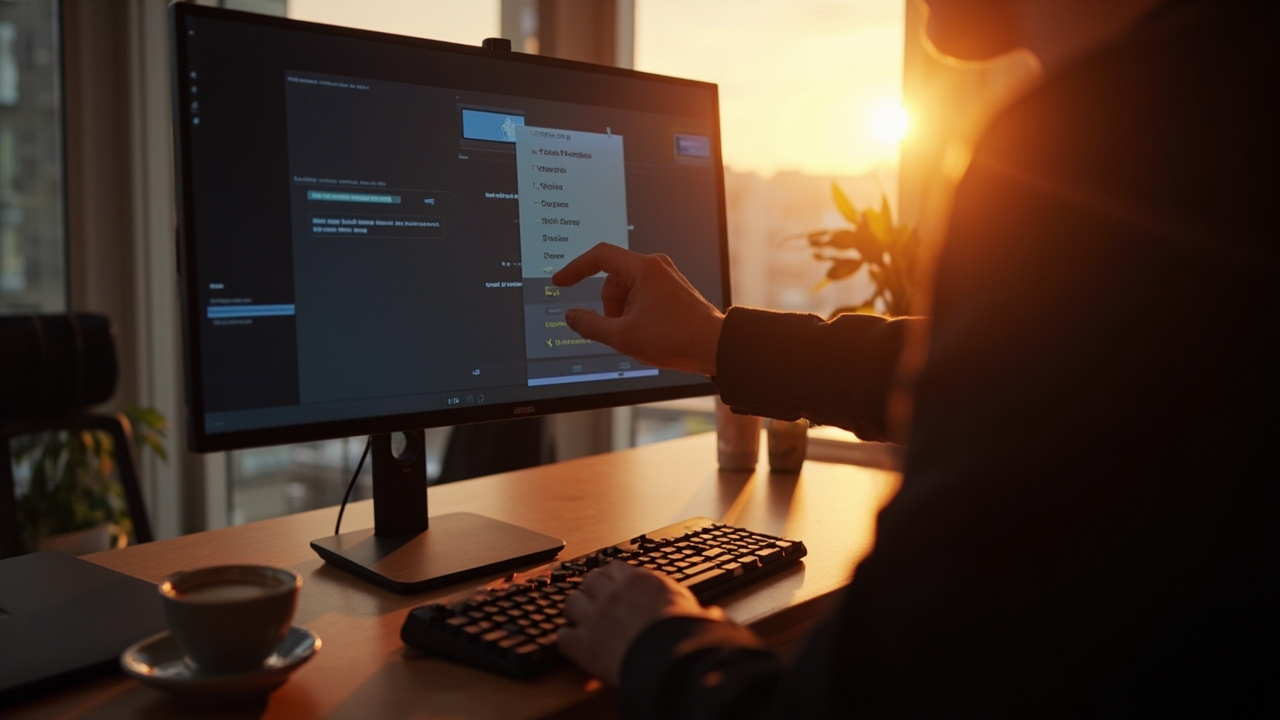
Most people unbox a monitor, plug it in, and never open the settings menu again. That's leaving performance on the table. Monitors ship with picture modes tuned for store lighting, and several options have a measurable impact on gaming smoothness, movie quality, and even eye comfort during long work sessions. None of these require daily attention—set them once, and you're done.
What happened
- Picture settings like brightness, contrast, gamma, and sharpness usually need adjustment from the out-of-box defaults.
- Windows must be set to the panel's maximum refresh rate for high-refresh displays.
- Picture modes (Cinema, Game, Standard, Dynamic) match settings to specific use cases.
- FreeSync or G-Sync should be enabled for tear-free gaming on supported monitors.
- Eye Saver or Low Blue Light modes reduce strain during long sessions.
How we got here
Monitor manufacturers optimize default picture settings for retail visibility—bright, punchy images that pop under fluorescent store lighting but often look blown-out or flat at home. Refresh-rate settings are easy to miss because Windows defaults to 60Hz even when the display supports more. Variable refresh rate support, standard on most gaming monitors, lives in the on-screen display and needs a second enable step in GPU software.
Our analysis
For office and productivity work, the wins are comfort-driven. Blue light filtering, room-appropriate brightness, and gamma tuned to your lighting reduce eye strain over long sessions. These settings don't require an expensive panel to matter.
For gaming, the single biggest quality bump comes from refresh rate and variable sync working together. A high-refresh display running at stock 60Hz is wasting its capability, and Windows doesn't always switch automatically. Pairing the correct refresh rate with FreeSync or G-Sync eliminates screen tearing—most users don't consciously notice it until it's gone. Together, these two settings deliver more tangible improvement than any panel upgrade under a few hundred dollars.
Picture modes trade off versus manual adjustment. Game mode disables post-processing and reduces input lag, which helps in competitive titles but can make single-player games look flat. Cinema mode pushes warmer temperatures that suit movies but look odd for productivity. Standard sits in the middle as a reasonable all-purpose default. The trade-off: modes are convenient but less precise than dialing in contrast, gamma, and sharpness individually.
Who should care
| User type | Priority settings | Why |
|---|---|---|
| Office workers | Eye Saver, brightness, gamma | Reduced eye strain during 8+ hour sessions |
| Casual gamers | Refresh rate, picture mode | Noticeably smoother motion without effort |
| Competitive gamers | Refresh rate, FreeSync/G-Sync, Game mode | Minimum input lag, tear-free output |
| Movie watchers | Cinema mode, contrast, sharpness | Better color accuracy and shadow detail |
| Night users | Eye Saver/Night Light, reduced brightness | Less disruption to sleep cycles |
What to watch next
Monitor firmware and GPU driver updates can change HDR behavior, which has historically been inconsistent on Windows. Beyond that, the settings covered here rarely need revisiting once configured.
Key takeaways
- Refresh rate and variable sync deliver the largest visible gaming improvement.
- Blue light filtering and gamma tuning reduce eye strain for long sessions.
- Picture modes are convenient but less precise than manual adjustment.
- Most monitor settings are best as a one-time calibration rather than daily tweaks.
Frequently asked questions
How do I set Windows to my monitor's max refresh rate?
Go to Settings > System > Display > Advanced display, select the monitor, and choose the highest refresh rate available.
Should I enable FreeSync or G-Sync?
Yes, on supported monitors. Enabling it in the monitor's on-screen display and on the GPU side removes screen tearing with no real downside.
What's the best picture mode for general use?
Standard mode is a sensible neutral default; Game mode suits fast-paced gaming, Cinema mode suits movies.
Is Eye Saver mode useful?
Yes, it reduces blue light output, which helps with eye strain during long sessions and may improve sleep quality when working late.
Where is FreeSync enabled on the GPU side?
On AMD GPUs, look in AMD Software under display settings. On Nvidia GPUs, find the G-Sync Compatible toggle in the Nvidia Control Panel.