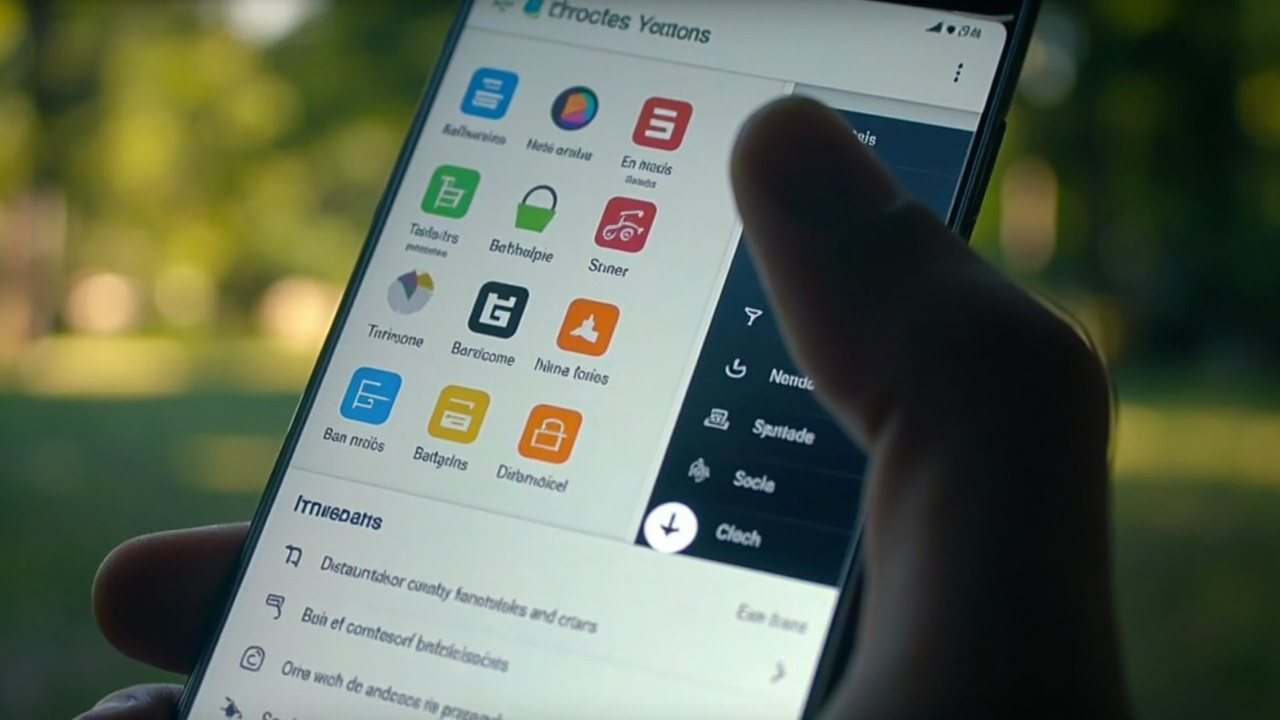
Android 17 lets users place any app in a floating bubble, stack multiple bubbles, and switch between them without visiting Recents. That makes the feature more useful than the messaging bubbles available on earlier Android versions.
However, its strongest advantage is fast access, not flexible multitasking. Android’s bubbles cannot be resized, and closing one shuts down the app. Those limits leave Google’s implementation behind Samsung’s Pop-up view.
What Android 17 app bubbles can do
Creating a bubble is simple: long-press an app icon and select Bubble. The app then floats above the current screen and can be expanded when more space is needed.
Several bubbles can be stacked together, making it possible to move between open apps without opening Recents. That is particularly handy for brief interruptions, such as checking a message while reading or looking up information while watching a video.
On foldables and tablets, Android adds a dedicated bubble bar. The larger display can show the main app beside a bubble, while multiple bubbles remain available for quick switching. This makes app bubbles more practical on large screens, although it does not resolve their underlying control limitations.
In that respect, bubbles are better understood as an access layer for secondary tasks. They reduce navigation overhead, but they do not provide the same freedom as desktop-style windows.
Where the experience falls short
The first major limitation is size. Android 17 bubbles cannot be resized, and by default a bubble may occupy the entire display. If it does, the app underneath is still hidden, so the user is switching between apps rather than viewing them together.
The second limitation is how closing works. Closing a bubble shuts down the app. A user who wants to return the app to its regular full-screen mode must therefore close the floating version first, which can interrupt the task inside that app.
Neither issue makes bubbles useless. They still offer a quicker way to keep several apps within reach. But users who need to compare information, copy content, or follow instructions in two apps at the same time need more control than Android’s bubbles currently provide.
The distinction becomes clearer on larger devices. A tablet or foldable can display the primary app and a bubble together, yet the bubble still cannot be resized and closing it still ends the app. More screen space improves the setup without making the window more flexible.
How app bubbles compare with Samsung Pop-up view
Samsung’s One UI has offered a more capable window system for years. Its Pop-up view supports movable, resizable windows, along with controls for minimizing, maximizing, closing, hiding the title bar, and snapping an app into split-screen mode.
Minimizing a Pop-up window turns it into a floating icon without terminating the app. Users can also open apps in Pop-up view from Recents or drag them from the Edge Panel onto the display. On supported foldables and tablets, One UI can run up to five windowed apps alongside one background app.
That gives Samsung users two ways to multitask: resizable windows for work that requires visibility, and minimized floating icons for rapid switching. Android 17 bubbles offer the second approach without delivering the first.
| Capability | Android 17 app bubbles | Samsung One UI Pop-up view |
|---|---|---|
| Apps available in floating mode | Any app | Any app |
| Multiple floating apps | Up to five bubbles on supported foldables and tablets | Up to five windowed apps plus a background app on supported foldables and tablets |
| Resizing | Not supported | Supported |
| Moving the window | Bubbles can float over the current app | Windows can be moved around the screen |
| Closing behavior | Closes the app | Closes the window without killing the app |
| Returning to regular app use | Requires closing the bubble | The app can be maximized or restored |
| Additional window controls | Expand a bubble into a window | Minimize, maximize, hide title bar, or snap into split-screen |
Why this matters
Google has finally turned a familiar chat interaction into a broader Android feature. That should make Pixel phones more convenient for users who routinely jump between short tasks.
Pixel users are also not the only ones with access to floating apps. Samsung has offered Pop-up view for years, while Motorola, Asus, Oppo, Xiaomi, and Vivo have provided similar implementations. As a result, the main beneficiaries of Android 17’s bubbles are users on devices without a more flexible floating-window system, rather than Android users as a whole.
The trade-off is straightforward. Bubbles win when the goal is to park an app and bring it back quickly. Pop-up view wins when the user needs to control the layout, see several apps at once, or return an app to full-screen use without closing it.
For example, a floating messaging app is convenient while reading an article. Resizable windows are better when comparing messages, transferring information, or following steps in one app while using another. Android’s bubbles handle the first situation better; Samsung’s system handles both.
What to watch next
Android 17 app bubbles are a worthwhile convenience, especially on foldables and tablets with dedicated bubble bars. Their ability to reduce Recents navigation is meaningful, but the fixed size and app-terminating close behavior prevent them from replacing resizable floating windows or split-screen.
The feature would become substantially more useful if Google added resizing, allowed users to restore a bubble into regular app use without closing it, and expanded controls for moving between windowed and full-screen modes.
Until then, Pixel users should treat bubbles as fast-switching overlays. Anyone who regularly needs multiple visible apps still has a stronger option in Samsung’s Pop-up view.
Key takeaways
- Android 17 can place any app in a floating bubble, rather than limiting bubbles to messaging apps.
- Stacked bubbles reduce the need to navigate Recents and keep secondary apps close at hand.
- Fixed sizing and app termination keep Android 17 bubbles behind Samsung’s Pop-up view.
- Foldables and tablets benefit most because the main app and bubble can remain visible together.
- Resizable floating windows remain the better choice for simultaneous, detailed work across apps.
Frequently asked questions
How do I open an app in a bubble on Android 17?
Long-press the app icon and select Bubble. You can then stack it with other bubbles or expand it into a window.
Can Android 17 app bubbles be resized?
No. Bubbles are not resizable, and by default one can cover the entire display.
Does closing a bubble close the app?
Yes. Closing a bubble shuts down the app, so returning it to regular use requires reopening it.
Are Android 17 app bubbles better on tablets and foldables?
They are more useful on larger screens because the bubble can appear beside the main app. However, the same resizing and closing limitations remain.